This guide describes how the accounting data must be exported from Agenda as a trial balance (“SuSa”) so that they can be imported into Finokapi as a basis for your financial planning & analysis.
Please note that a SuSa file always relates to an entire fiscal year. We recommend that you take into account at least 2 previous years when exporting for the first time and create a new export every month for the current fiscal year.
Step 1: Open Agenda Financial Accounting
Please follow the steps below to create the SuSa files in the format suitable for Finokapi:
Open the Agenda Financial Accounting for the desired client.
Select the desired fiscal year.
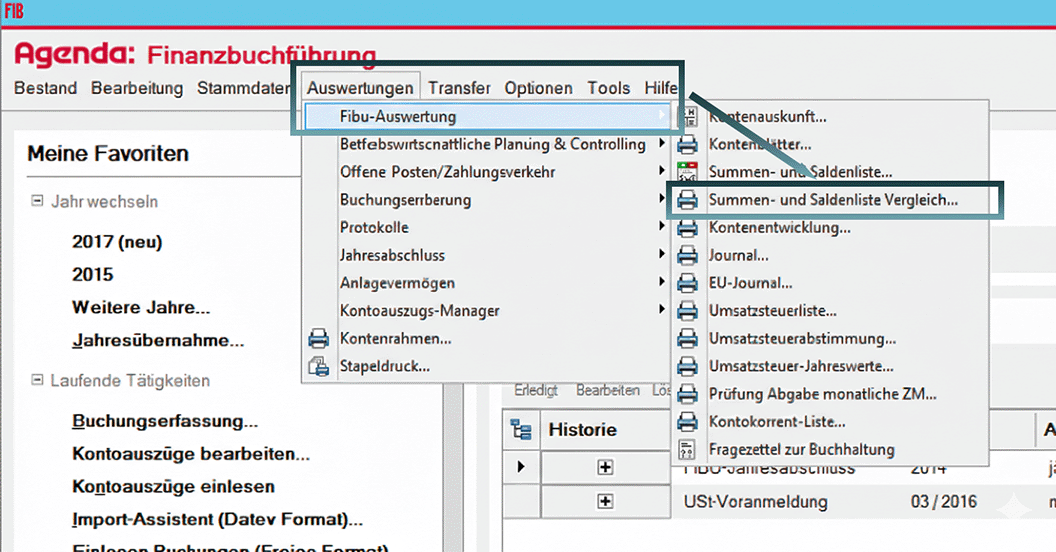
In the top menu, click on „Auswertungen“ -> „Fibu-Auswertung“ -> „Summen- und Saldenliste Vergleich…“.
Step 2: Configure export settings
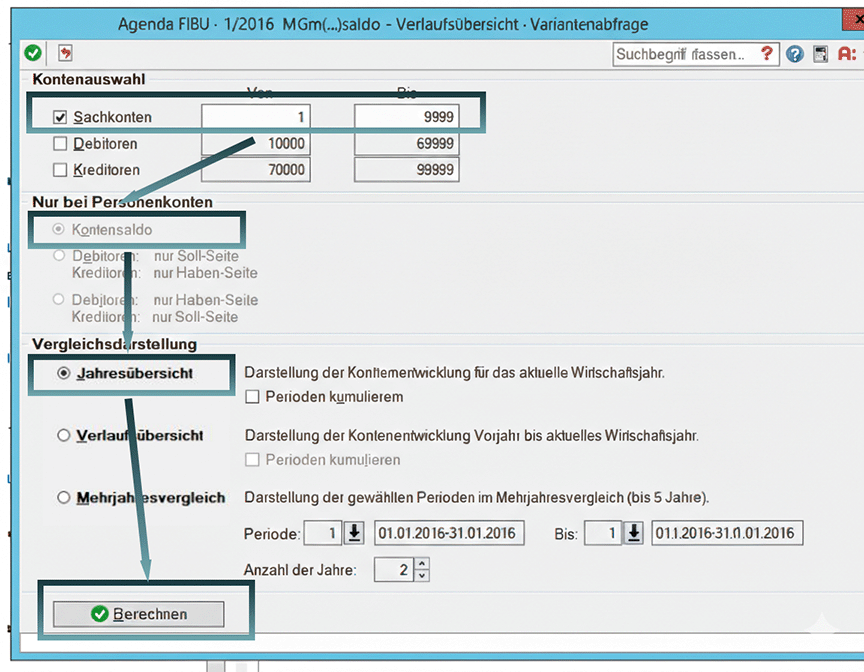
To ensure that the data can be processed correctly by Finokapi, please select exactly the following settings in the new window:
Kontenauswahl: Nur Sachkonten
Nur bei Personenkonten: Kontensaldo
Vergleichsdarstellung: Jahresübersicht (Important: no cumulation!)
Then click "Berechnen". You will now see the annual overview report on your screen.
Step 3: Save the SuSa file as CSV
To extract the data from Agenda, proceed as follows:
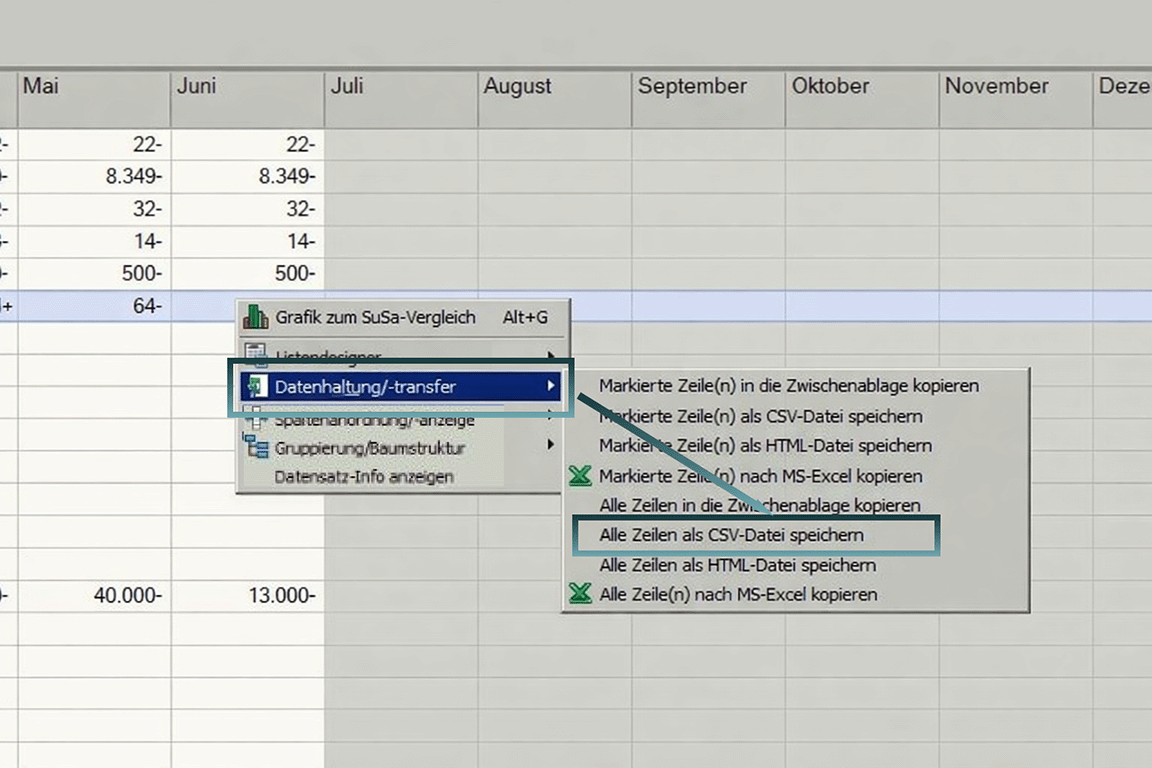
Right-click in the middle of the generated report.
In the context menu, select "Datenhaltung/-transfer" → "Alle Zeilen als CSV-Datei speichern".
Set the storage location and choose a unique file name (e.g., Client_SuSa_2023.csv).
Make sure the file extension .csv is retained.
The SuSa file is now located at the previously selected storage location.
Schritt 4: SuSa-Datei in Finokapi hochladen
Geben Sie die Datei an die anfordernde Person weiter bzw. laden Sie sie selbst im Datenimport-Modul in Finokapi hoch.
Anleitung:
In Finokapi links auf Datenimport klicken.
Unter SuSa-Daten Ihre Datenquelle auswählen -> "Agenda"
Datei per Drag & Drop hochladen oder Dateien hochladen klicken.

.png)
.png)